Integrate HubSpot with Outlook: Build a CRM Add-in for Contacts, Deals & Email Logging
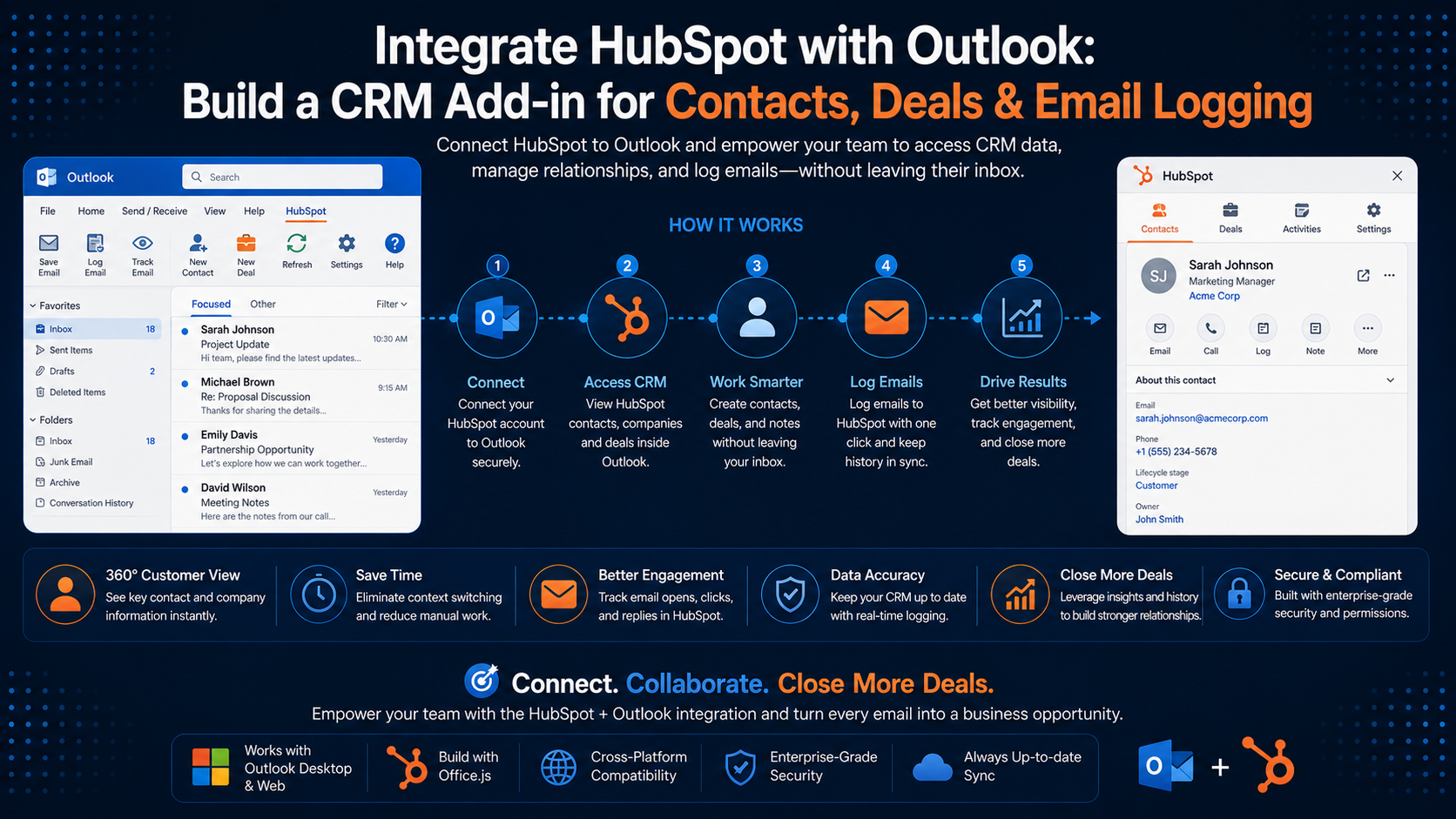
Bring your HubSpot CRM into Outlook with a custom Office.js add-in — surface contact and deal context beside every email, log conversations automatically, and create records without leaving the inbox.
Introduction
HubSpot is one of the most widely used CRMs for sales and marketing teams, while Outlook is where those same teams spend most of their day. The gap between the two is expensive: reps copy-paste email threads into the CRM, forget to log calls, and switch tabs constantly to check a contact’s history before replying.
A custom Outlook add-in closes that gap. It shows live HubSpot context right beside the message you’re reading — who this person is, their open deals, recent activity — and lets you log the email or create a contact, deal, or task without ever leaving the inbox.
Why Integrate HubSpot with Outlook?
- See contact, company, and deal context next to every email — no tab switching.
- Log emails to the CRM timeline in one click (or automatically on send).
- Create contacts, deals, and tasks from the inbox while the context is fresh.
- Keep the CRM complete so pipeline reports and forecasts are actually accurate.
- Give reps a faster workflow that increases adoption instead of fighting it.
How the Integration Works
The add-in is an Office.js task pane and set of commands that load beside a message in Outlook on Windows, Mac, and the web. It reads the current email through Office.context.mailbox.item, then calls a backend service you host. That backend holds your HubSpot app credentials, runs the OAuth 2.0 flow, and proxies requests to the HubSpot CRM API — returning clean JSON the task pane renders.
What You Can Surface & Sync
- Contacts and companies matched to the sender’s email address
- Open and won/lost deals, deal stage, and amount
- Recent activity from the CRM timeline (emails, calls, notes, meetings)
- Tasks and next steps assigned to the rep
- New records: create contacts, deals, tasks, and log engagements
Authenticating with OAuth 2.0
HubSpot uses the OAuth 2.0 authorization-code flow with scoped access (for example crm.objects.contacts.read and crm.objects.deals.write). The user connects their HubSpot account once; your backend exchanges the code for access and refresh tokens and stores them securely. Kick the flow off from the add-in using the Office Dialog API.
// Open the HubSpot consent flow hosted by your backend, in an Office dialog.
Office.context.ui.displayDialogAsync(
  'https://your-backend.com/hubspot/connect',
  { height: 60, width: 40 },
  (result) => {
    const dialog = result.value;
    dialog.addEventHandler(Office.EventType.DialogMessageReceived, (arg) => {
      // Backend posts back a short-lived session token, NOT the HubSpot tokens.
      sessionStorage.setItem('hubspotSession', arg.message);
      dialog.close();
    });
  }
);
Keep secrets and tokens server-side
Reading the Current Email Context
Start by reading the sender of the selected message — that email address is the key you’ll use to look the person up in HubSpot.
const item = Office.context.mailbox.item;
const senderEmail = item.from?.emailAddress; // e.g. 'jane@acme.com'
const subject = item.subject;

// Pass senderEmail to your backend to find the matching CRM contact.
Looking Up a Contact in HubSpot
Ask your backend for the contact (and their deals) by email. The backend calls HubSpot’s search endpoint and returns a tidy summary for the task pane to render.
async function findContact(email) {
  const token = sessionStorage.getItem('hubspotSession');
  const res = await fetch(
    `https://your-backend.com/hubspot/contacts?email=${encodeURIComponent(email)}`,
    { headers: { Authorization: `Bearer ${token}` } }
  );
  if (res.status === 404) return null; // no match — offer to create one
  if (!res.ok) throw new Error('HubSpot lookup failed');
  return res.json(); // { name, company, deals: [...], recentActivity: [...] }
}
Cache lookups per thread
Logging Emails & Creating Records
Logging an email creates an engagement on the contact’s timeline. Let the rep confirm, then post the message metadata to your backend, which writes it to HubSpot.
async function logEmail(contactId) {
  const item = Office.context.mailbox.item;
  const token = sessionStorage.getItem('hubspotSession');

  await fetch('https://your-backend.com/hubspot/engagements/email', {
    method: 'POST',
    headers: {
      Authorization: `Bearer ${token}`,
      'Content-Type': 'application/json',
    },
    body: JSON.stringify({
      contactId,
      subject: item.subject,
      timestamp: item.dateTimeCreated,
    }),
  });
}
The same pattern powers “Create contact”, “Create deal”, and “Add task” buttons — each posts to your backend, which calls the matching HubSpot CRM endpoint and returns the new record’s id.
Event-Based Automation
With an event-based add-in you can react to OnMessageSend and offer (or automatically perform) email logging as the rep hits send — capturing outbound activity without any manual step. Keep the handler lightweight, call event.completed() promptly, and do the heavy work on your backend.
Mind the rate limits
Security & Best Practices
- Keep HubSpot client secrets and OAuth tokens server-side only; encrypt them at rest.
- Request the minimum scopes each feature needs — read-only where you can.
- Refresh access tokens on the server and handle expiry transparently.
- Serve every endpoint over HTTPS and validate the add-in’s session token on each call.
- Sanitize any CRM content before rendering it in the task pane to prevent injection.
Conclusion
A HubSpot-in-Outlook add-in turns the inbox into a CRM cockpit: reps see who they’re talking to, log activity in a click, and create records while the context is fresh — so the pipeline stays accurate and adoption goes up. Start with contact context and one-click email logging, prove the workflow, then layer on deal creation and automation. If you want a secure, production-ready HubSpot add-in built for your team, we can help.
Related Articles
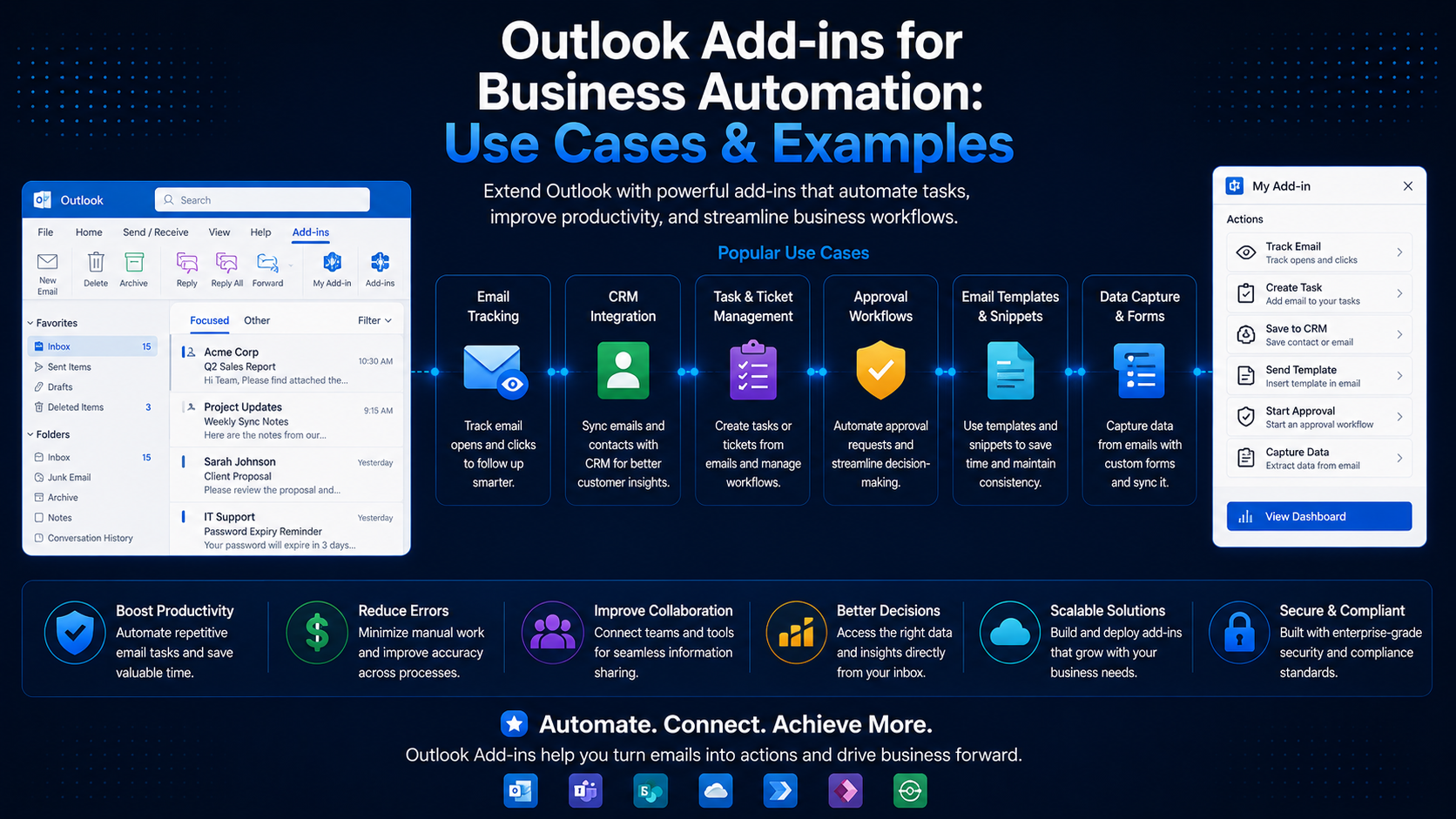 Outlook Add-insOutlook Add-ins for Business Automation: Use Cases & ExamplesJune 20, 2024 · 6 min read
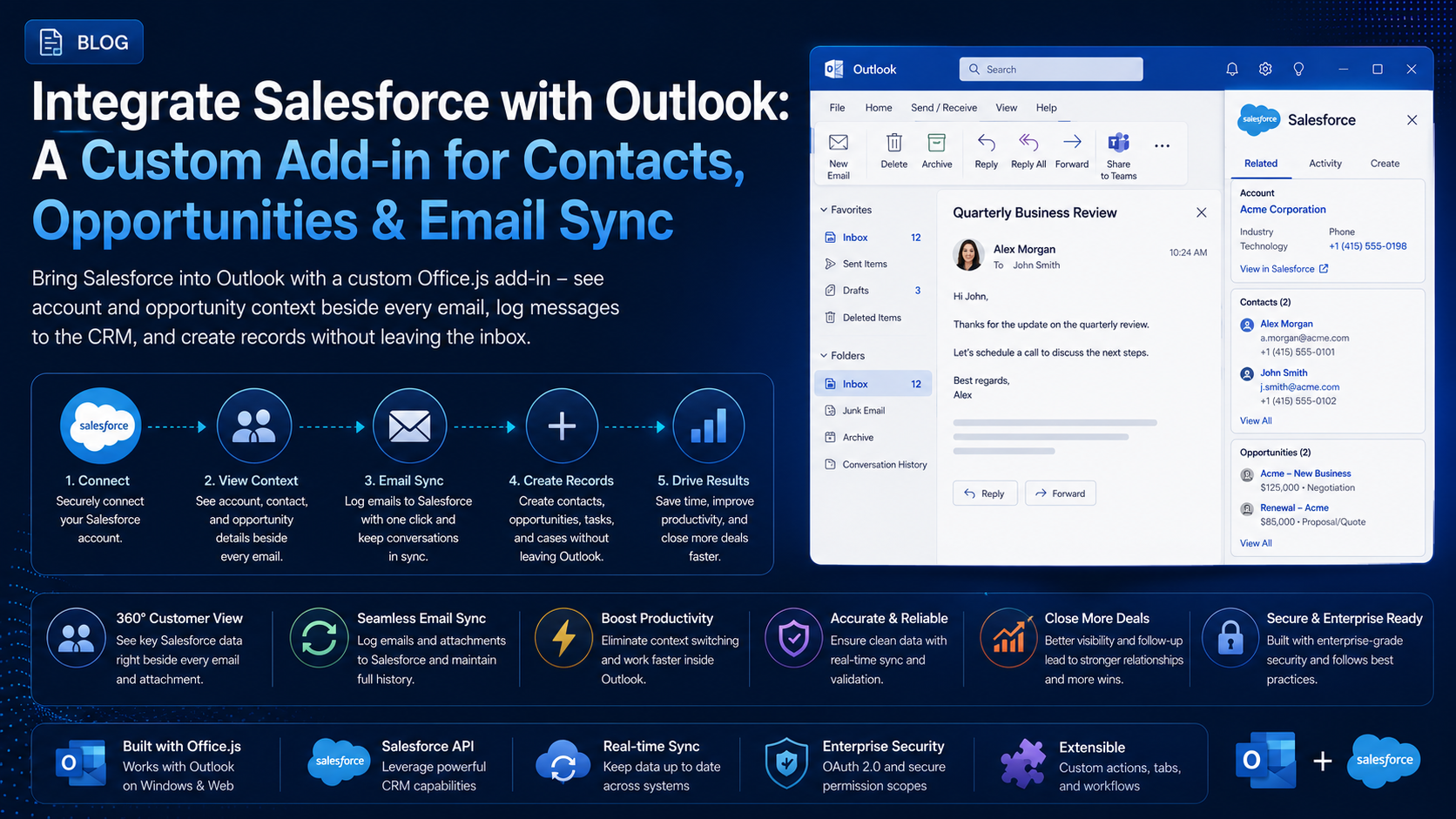 Outlook Add-insIntegrate Salesforce with Outlook: A Custom Add-in for Contacts, Opportunities & Email SyncJuly 12, 2026 · 9 min read
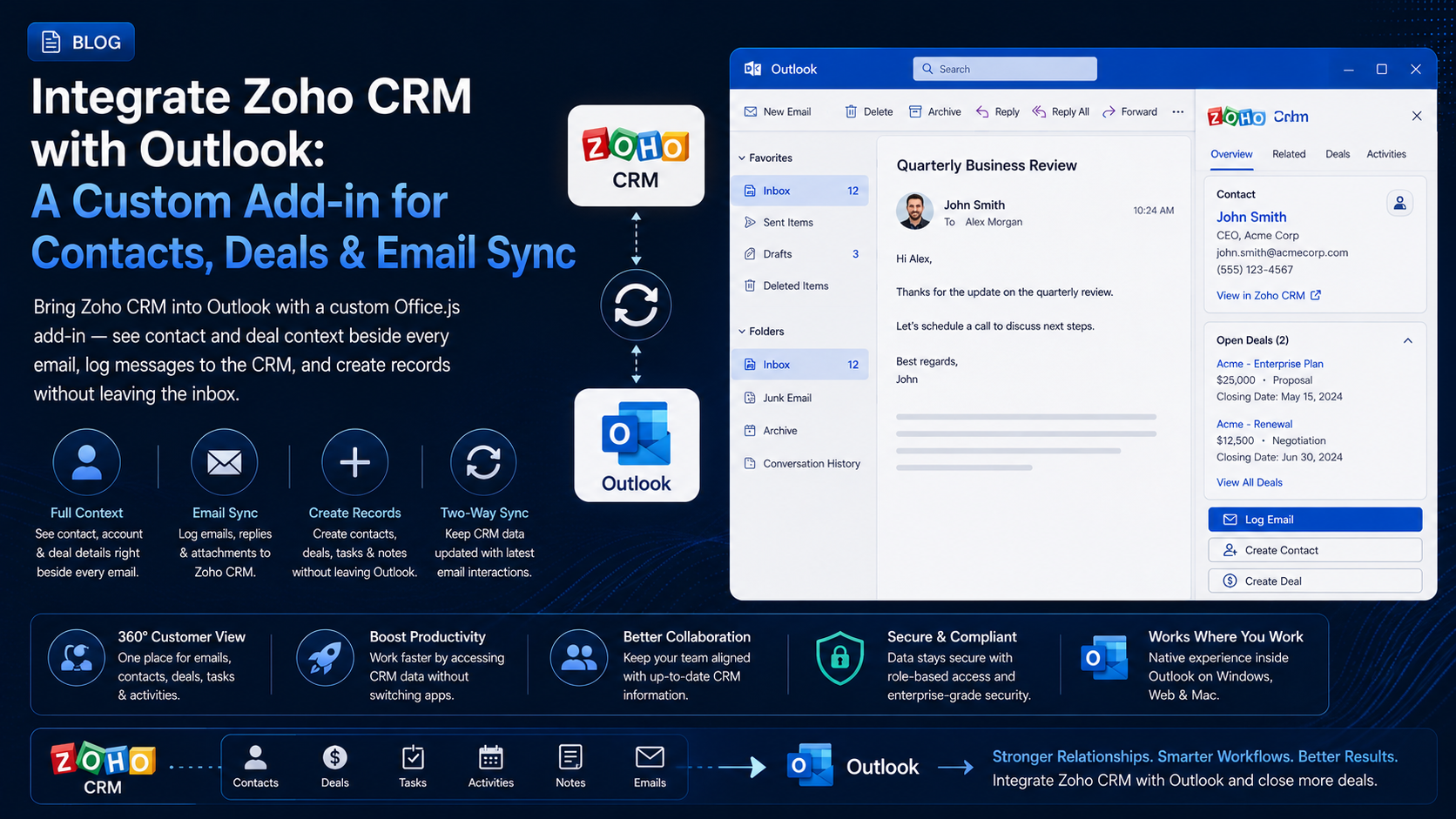 Outlook Add-insIntegrate Zoho CRM with Outlook: A Custom Add-in for Contacts, Deals & Email SyncJuly 24, 2026 · 9 min read