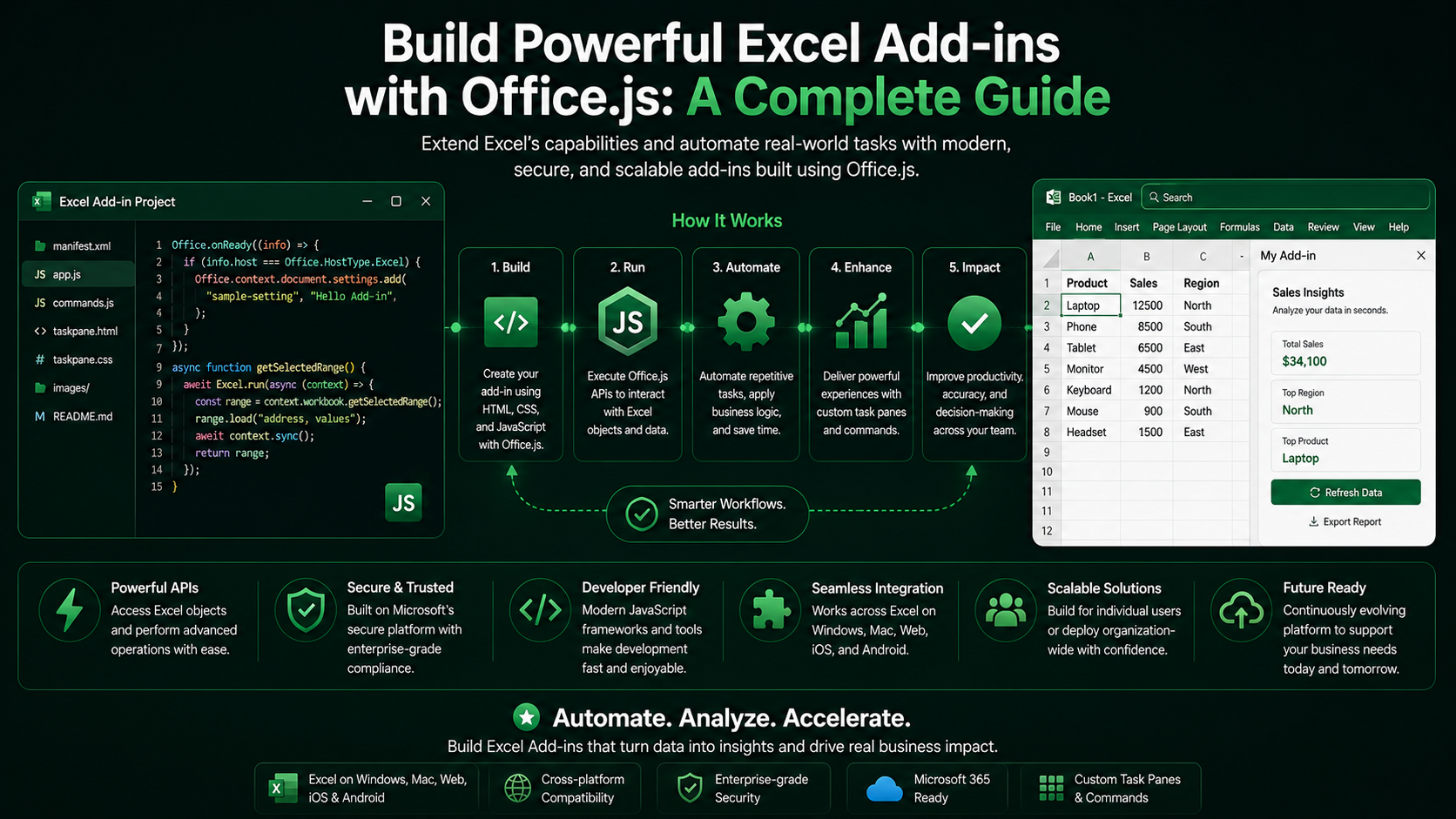
Build Powerful Excel Add-ins with Office.js: A Complete Guide
Learn how to create feature-rich Excel add-ins using Office.js, including key APIs, best practices, and deployment.
Introduction
Excel remains the go-to tool for data analysis, reporting, and business intelligence. With Office.js, you can extend Excel’s capabilities by building powerful add-ins that automate tasks, enhance workflows, and deliver seamless user experiences.
In this guide, we’ll walk through the fundamentals of building Excel Add-ins with Office.js, key APIs, best practices, and deployment options.
What is Office.js?
Office.js is a JavaScript API that allows developers to build cross-platform add-ins for Microsoft Office applications, including Excel. It provides a rich set of APIs to interact with Excel data, worksheets, charts, range formatting, and more.
Prerequisites
- A Microsoft 365 account
- Node.js and npm installed
- VS Code (recommended)
- Yeoman generator for Office Add-ins
Create Your First Excel Add-in
Let’s scaffold a new Excel Add-in project using Yeoman.
npm install -g yo generator-office
yo office
Follow the prompts, choose Excel, and select a task pane project. Once generated, start the local dev server and sideload the add-in:
npm install
npm start
Explore Key Excel APIs
The Excel JavaScript API is built around the request context and batched operations. The snippet below writes values to a range and reads them back after syncing with the host.
await Excel.run(async (context) => {
  const sheet = context.workbook.worksheets.getActiveWorksheet();
  const range = sheet.getRange('A1:B2');

  range.values = [
    ['Region', 'Revenue'],
    ['EMEA', 42000],
  ];
  range.format.autofitColumns();

  range.load('values');
  await context.sync();

  console.log(range.values);
});
Batch your calls
Best Practices
- Always load only the properties you use, then call context.sync().
- Handle errors with try/catch around Excel.run for graceful failures.
- Design responsive task panes that work at narrow widths.
- Cache settings with the Office roaming settings API instead of re-reading them.
Deploy Your Add-in
Production add-ins are described by an XML manifest. Host the static bundle on HTTPS, then distribute through AppSource for public reach or centralized deployment through the Microsoft 365 admin center for organizations.
HTTPS required
Conclusion
Office.js unlocks a vast surface area for automating Excel. Start small with a task pane, lean on batched API calls, and graduate to AppSource when you are ready to ship. With these fundamentals you can build add-ins that genuinely improve how teams work with their data.
Related Articles
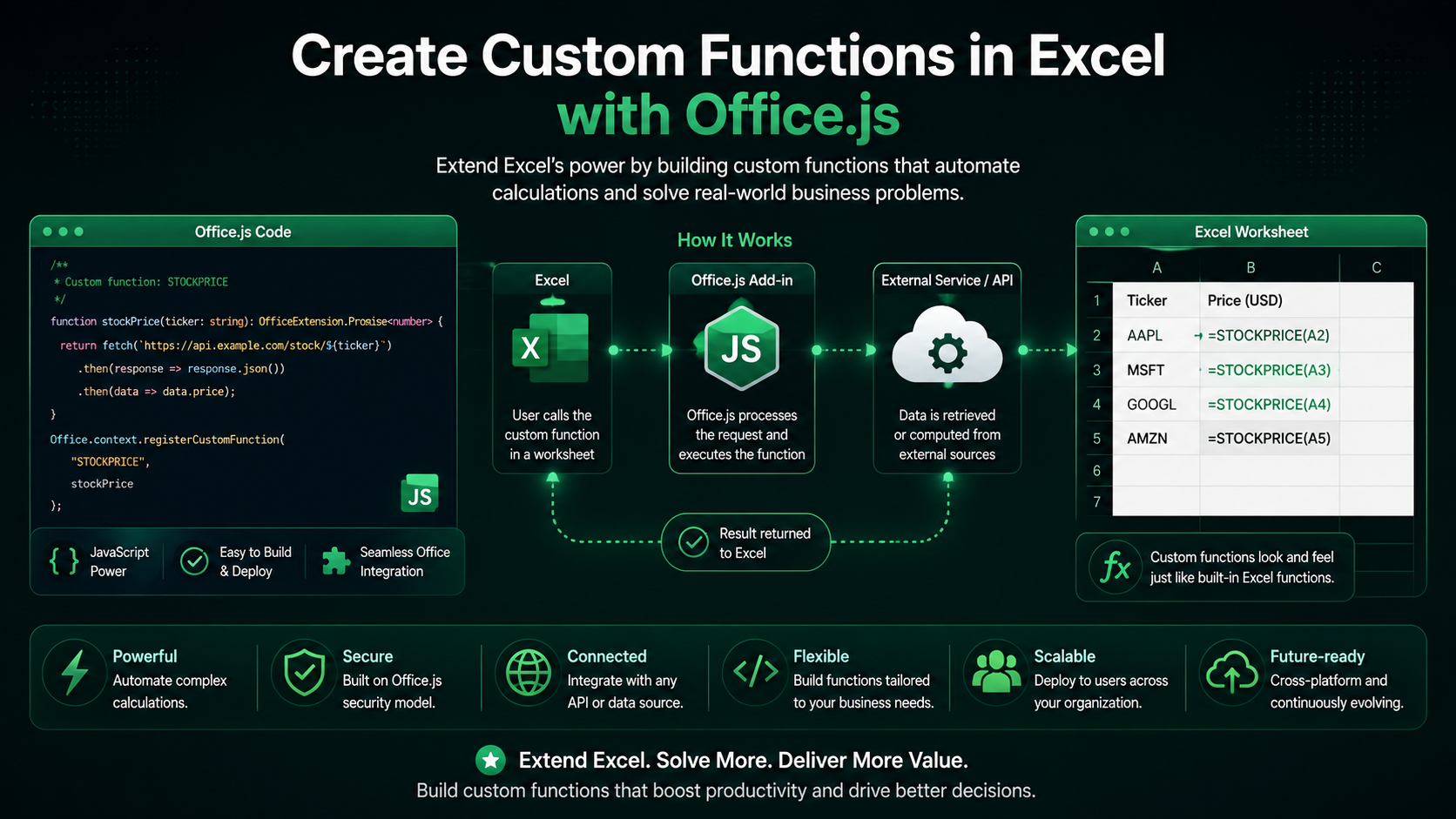 Excel Add-insCreate Custom Functions in Excel with Office.jsDecember 3, 2025 · 8 min read
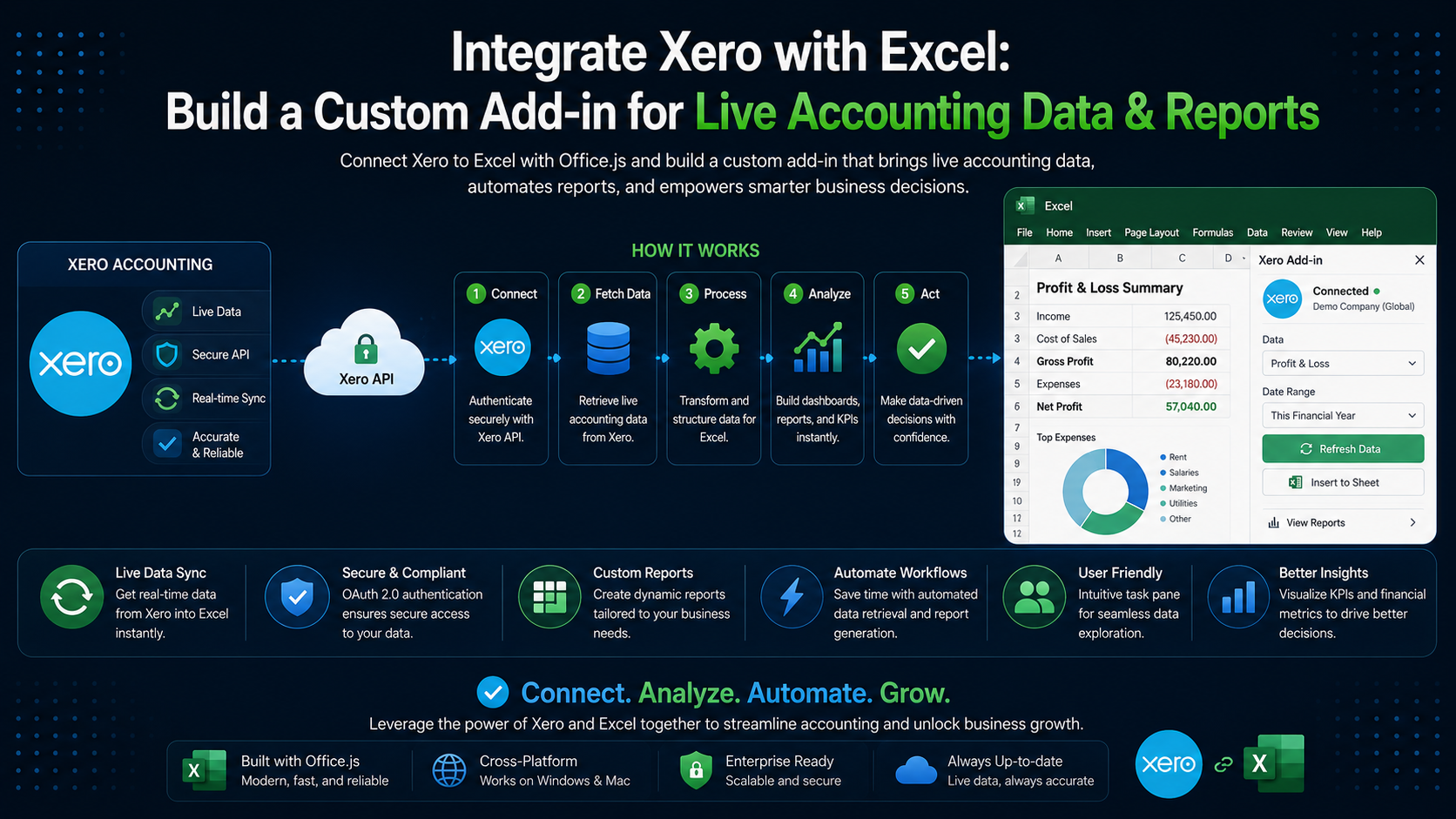 Excel Add-insIntegrate Xero with Excel: Build a Custom Add-in for Live Accounting Data & ReportsMarch 15, 2026 · 9 min read
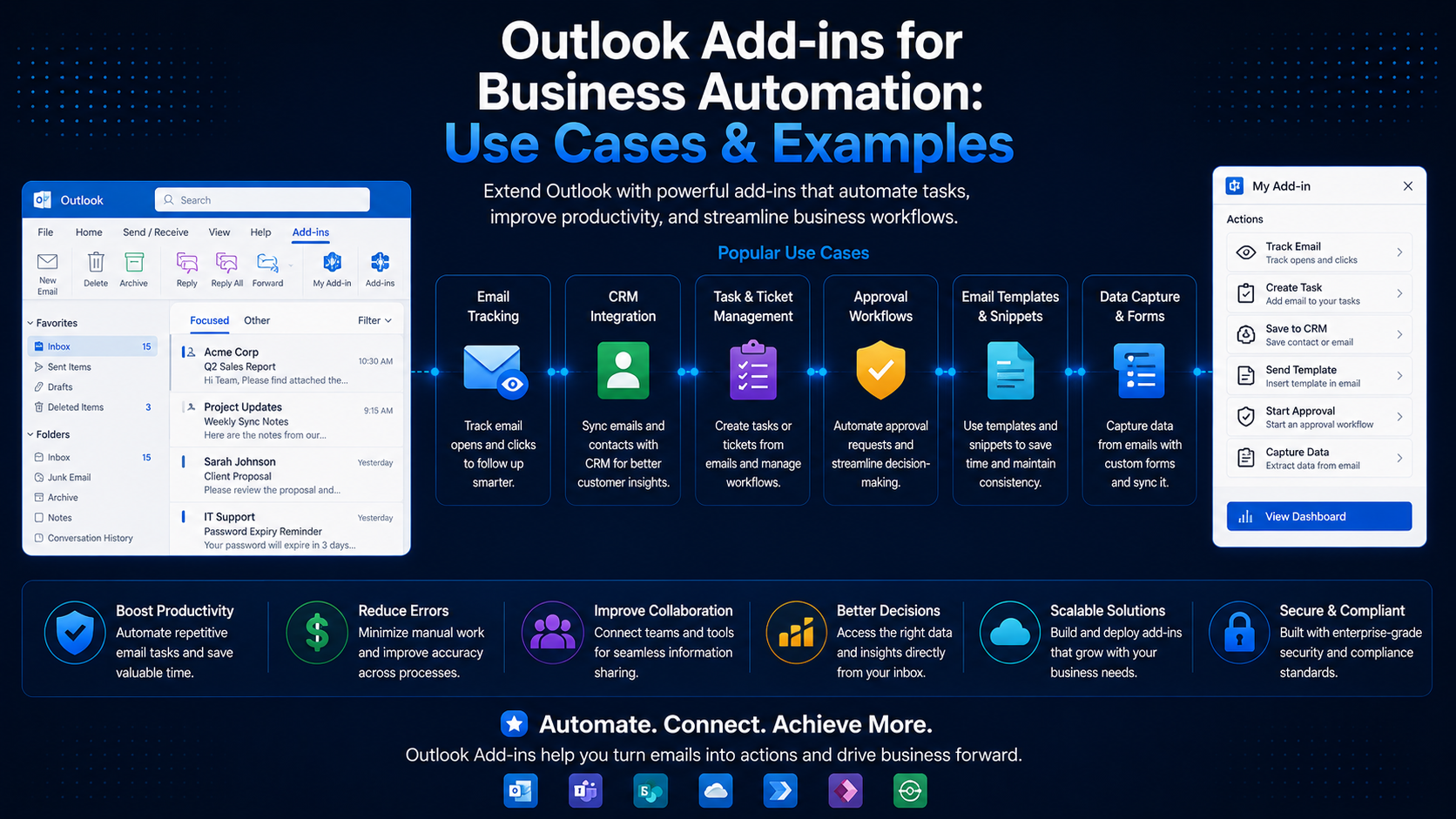 Outlook Add-insOutlook Add-ins for Business Automation: Use Cases & ExamplesJune 20, 2024 · 6 min read