Google Sheets Custom Functions with Apps Script: A Complete Guide
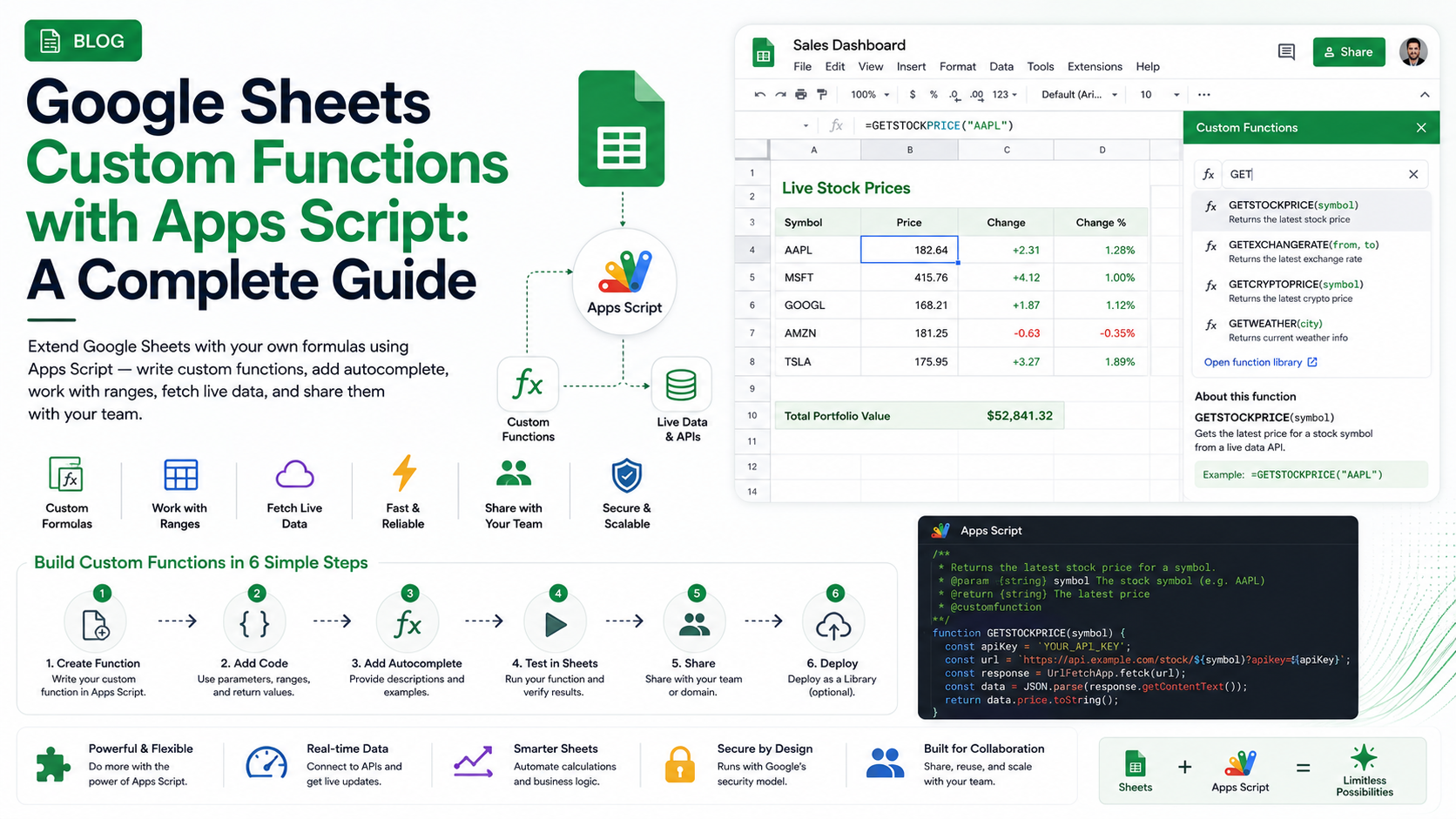
Extend Google Sheets with your own formulas using Apps Script — write custom functions, add autocomplete, work with ranges, fetch live data, and share them with your team.
Introduction
Google Sheets already has hundreds of built-in formulas, but sooner or later you hit something they can’t do — a bespoke calculation, a lookup against your own API, a bit of business logic you repeat in every sheet. Custom functions let you add your own formulas to Sheets, callable the same way as SUM or VLOOKUP.
They’re written in Google Apps Script, and in this guide we’ll go from your very first custom formula to documenting it for autocomplete, handling ranges, pulling in live data, keeping it fast, and sharing it across your team.
What you’ll need
What Are Custom Functions?
A custom function is a JavaScript function you write in Apps Script that Google Sheets exposes as a formula. Type it into a cell like any other function — for example =DOUBLE(A1) — and Sheets runs your code and drops the result into the cell. They recalculate automatically when their inputs change, just like native formulas.
Write Your First Function
Open Extensions → Apps Script from your spreadsheet, then write a plain function that returns a value. Save, go back to the sheet, and call it like any formula.
function DOUBLE(value) {
  return value * 2;
}

// In a cell:  =DOUBLE(A1)
That’s it — no registration, no manifest. The function name becomes the formula name (Sheets shows it uppercased), and whatever you return lands in the cell.
Document It for Autocomplete
Add a JSDoc comment with the @customfunction tag and Sheets will show your function in the autocomplete dropdown, complete with argument hints — exactly like a built-in formula. This small step makes a huge difference to how usable your function feels.
/**
 * Multiplies a number by a factor.
 *
 * @param {number} value The number to multiply.
 * @param {number} factor The factor to multiply by.
 * @return The multiplied result.
 * @customfunction
 */
function MULTIPLYBY(value, factor) {
  return value * factor;
}
Working with Ranges
When a user passes a range like A1:A10, Sheets hands your function a two-dimensional array instead of a single value. Handle both cases so your function works whether it’s given one cell or many. Returning an array writes results across multiple cells.
/**
 * Adds a bonus to one number or a whole range.
 *
 * @param {number|Array<Array<number>>} input A number or range.
 * @param {number} bonus Amount to add.
 * @return The value(s) with the bonus added.
 * @customfunction
 */
function ADDBONUS(input, bonus) {
  if (Array.isArray(input)) {
    return input.map((row) => row.map((cell) => cell + bonus));
  }
  return input + bonus;
}
Fetching External Data
Custom functions can call external APIs with UrlFetchApp — pulling exchange rates, stock prices, or data from your own service straight into a cell. Just return the value you want displayed.
/**
 * Gets the USD price for a ticker from an API.
 *
 * @param {string} ticker The stock symbol.
 * @return {number} The latest price.
 * @customfunction
 */
function GETPRICE(ticker) {
  const res = UrlFetchApp.fetch(
    'https://api.example.com/price/' + encodeURIComponent(ticker)
  );
  return JSON.parse(res.getContentText()).price;
}
No user-auth services
Caching & Performance
If a formula that calls an API is copied down hundreds of rows, that’s hundreds of requests — slow, and quick to hit quotas. Cache results with CacheService so repeated calls with the same input return instantly.
function GETPRICE(ticker) {
  const cache = CacheService.getScriptCache();
  const cached = cache.get(ticker);
  if (cached) return Number(cached);

  const res = UrlFetchApp.fetch('https://api.example.com/price/' + ticker);
  const price = JSON.parse(res.getContentText()).price;

  cache.put(ticker, String(price), 600); // cache for 10 minutes
  return price;
}
Batch when you can
Limitations to Know
- Each call must finish within about 30 seconds, or the cell shows an error.
- They can’t change the spreadsheet — no formatting, no writing to other cells, no side effects.
- They run without user authorization, so services that need consent (Gmail, Drive files) are off-limits.
- Names can’t clash with built-in functions and must use letters, numbers, and underscores.
- They recalculate on input change, not on a timer — use a trigger if you need scheduled refreshes.
Sharing Your Functions
A function written in a spreadsheet’s bound script only exists in that one sheet. To reuse it, you have a couple of options depending on how widely you want to share:
- Copy the spreadsheet — the bound script (and its functions) comes with it.
- Package the functions into a Google Workspace editor add-on and publish it to the Marketplace — publicly, or privately to your Workspace domain.
- For an internal team, a private Marketplace add-on gives everyone the same functions with centrally managed updates.
Conclusion
Custom functions turn Google Sheets from a spreadsheet into a platform you can extend to fit exactly how your team works — your own formulas, your own data, your own logic, right in the cell. Start with one small function, add JSDoc so it feels native, and mind the caching and limits as it grows. When you’re ready to package your functions into a polished, shareable add-on, we’d be glad to help.
Related Articles
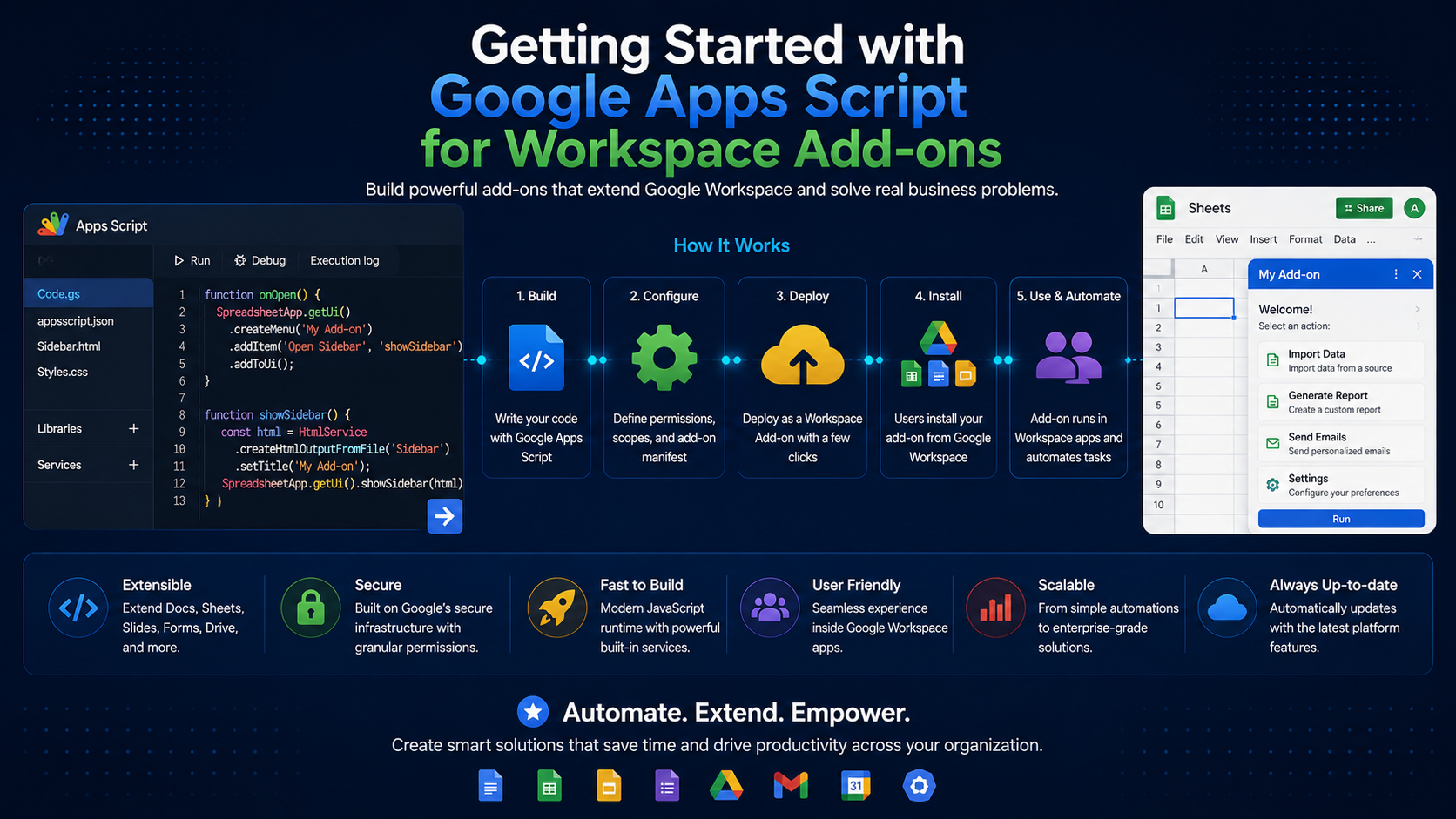 Google WorkspaceGetting Started with Google Apps Script for Workspace Add-onsSeptember 5, 2024 · 7 min read
 Google WorkspaceBuild a Gmail Add-on with Apps Script: A Step-by-Step GuideApril 15, 2025 · 8 min read
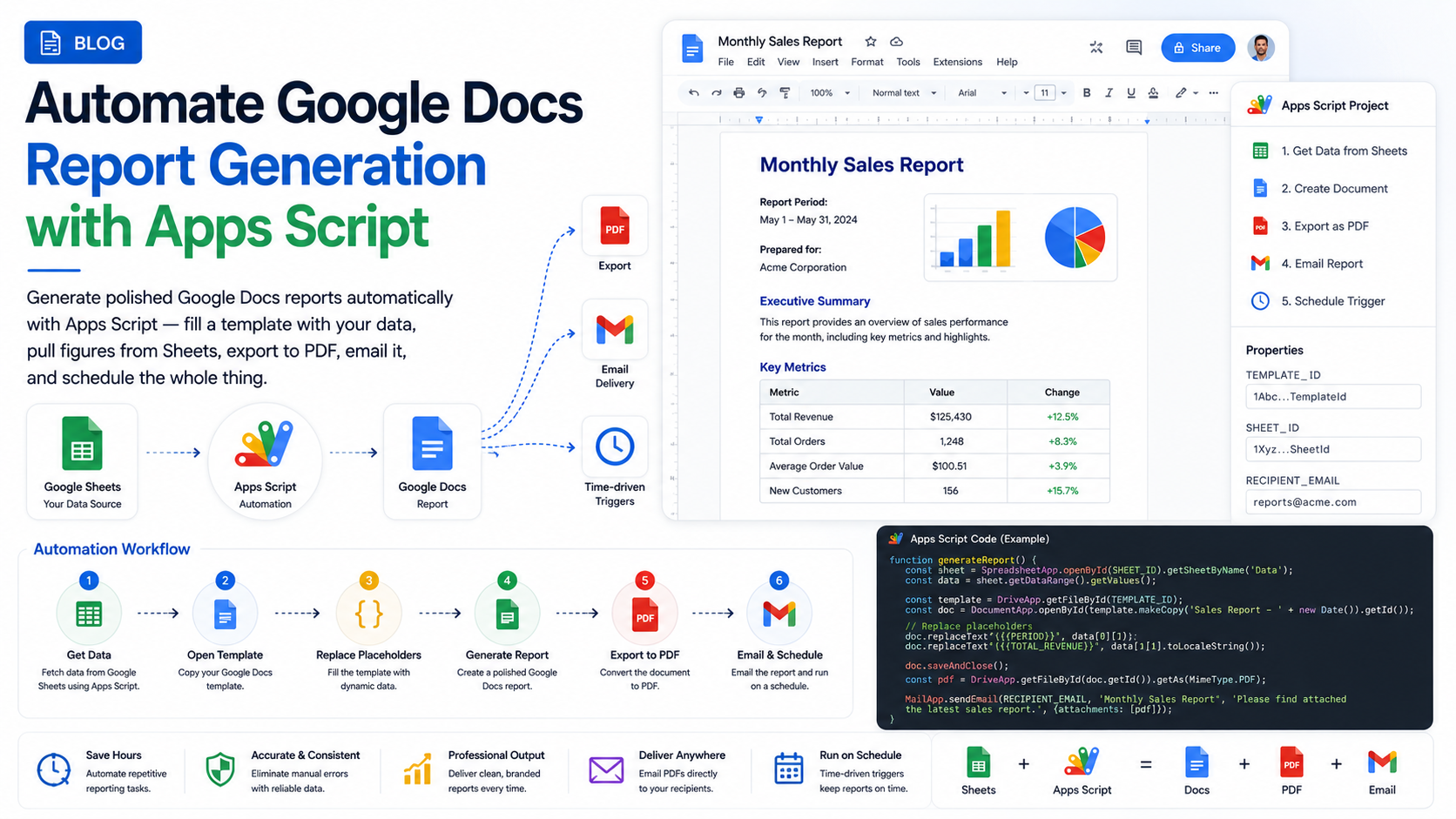 Google WorkspaceAutomate Google Docs Report Generation with Apps ScriptMay 15, 2025 · 8 min read