Automate Google Docs Report Generation with Apps Script
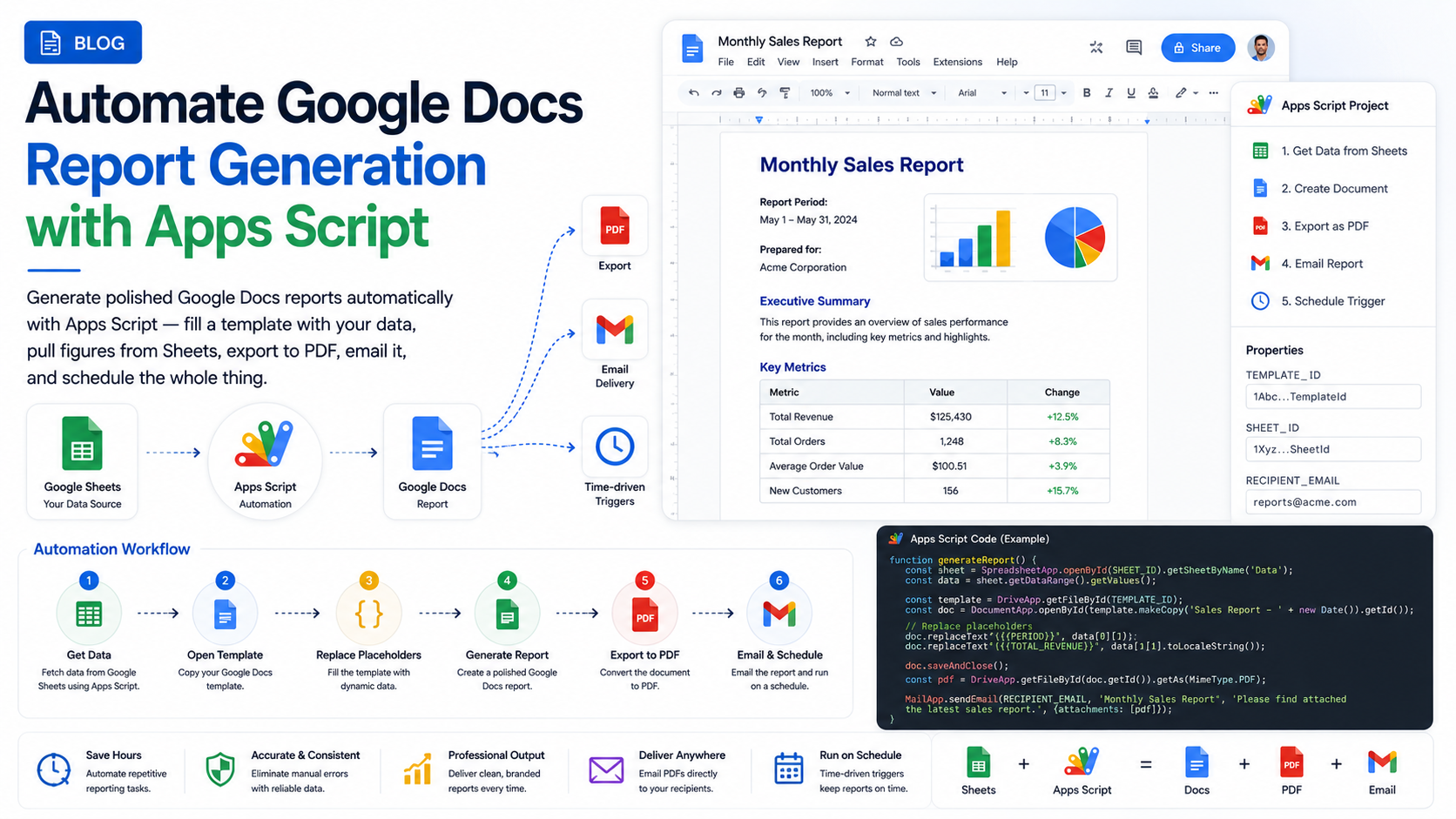
Generate polished Google Docs reports automatically with Apps Script — fill a template with your data, pull figures from Sheets, export to PDF, email it, and schedule the whole thing.
Introduction
Every team has a report someone rebuilds by hand each week — a status update, a client summary, a monthly performance doc. The data changes, the layout doesn’t, and the copy-paste ritual quietly eats hours. Google Apps Script can take that whole job off your plate.
In this guide we’ll automate a Google Docs report end to end: start from a template, drop in live data, add tables, export a PDF, email it, and finally schedule it to run on its own — all with Apps Script and no servers.
What you’ll need
Why Automate Docs Reports?
- Eliminate the weekly copy-paste and the errors that creep in with it.
- Guarantee every report follows the same on-brand structure and formatting.
- Pull the latest numbers straight from Sheets or an API so reports are never stale.
- Deliver PDFs to stakeholders automatically, on a schedule, with no one lifting a finger.
- Free your team to analyse the report instead of assembling it.
How It Works
The pattern is simple: keep a Google Doc as a template with placeholders like {{client}} and {{total}}, then have Apps Script copy it, replace the placeholders with real values, and produce a finished document. From there you can export a PDF, email it, or file it in Drive.
Create a Template
Design the report once as a normal Google Doc — headings, styles, logo, layout — and mark the parts that change with placeholder tokens. Wrapping them in double braces makes them easy to find and replace, and impossible to confuse with regular text.
Monthly Report — {{month}}

Prepared for: {{client}}
Account owner: {{owner}}

Total revenue: {{total}}
Summary: {{summary}}
Note the template’s file id from its URL — the script needs it to make copies.
Fill the Template with Data
Copy the template into a target folder, open the copy, and replace each placeholder with a real value using replaceText. Always save and close the document so your changes are flushed.
function buildReport(data) {
  const template = DriveApp.getFileById('TEMPLATE_DOC_ID');
  const folder = DriveApp.getFolderById('REPORTS_FOLDER_ID');
  const copy = template.makeCopy(`Report - ${data.client} - ${data.month}`, folder);

  const doc = DocumentApp.openById(copy.getId());
  const body = doc.getBody();

  body.replaceText('{{month}}', data.month);
  body.replaceText('{{client}}', data.client);
  body.replaceText('{{owner}}', data.owner);
  body.replaceText('{{total}}', data.total);
  body.replaceText('{{summary}}', data.summary);

  doc.saveAndClose();
  return doc;
}
Pull Data from Sheets
Most reports are driven by a spreadsheet. Read the row you need with SpreadsheetApp and hand it to the builder — now the report reflects live data every time it runs.
function getReportData() {
  const sheet = SpreadsheetApp.openById('DATA_SHEET_ID')
    .getSheetByName('Summary');
  const [header, ...rows] = sheet.getDataRange().getValues();
  const latest = rows[rows.length - 1]; // most recent row

  return {
    month: latest[0],
    client: latest[1],
    owner: latest[2],
    total: latest[3],
    summary: latest[4],
  };
}
Insert Tables & Dynamic Content
Placeholders are great for single values, but reports often need a table of rows. Put a marker like {{table}} in the template, then replace it with a real table built from your data.
function insertTable(body, rows) {
  const marker = body.findText('{{table}}');
  if (!marker) return;

  const element = marker.getElement().getParent();
  const index = body.getChildIndex(element);

  const tableData = [['Item', 'Amount'], ...rows]; // header + data
  body.insertTable(index, tableData);
  element.removeFromParent(); // remove the placeholder paragraph
}
Style after you insert
Export to PDF & Share
Most people want the finished report as a PDF. Grab the document as a PDF blob and either save it to Drive or email it straight to stakeholders as an attachment.
function emailReport(docId, recipient) {
  const pdf = DriveApp.getFileById(docId).getAs('application/pdf');

  MailApp.sendEmail({
    to: recipient,
    subject: 'Your monthly report',
    body: 'Please find this month’s report attached.',
    attachments: [pdf],
  });
}
Schedule It
The final step is making it run on its own. A time-driven trigger calls your top-level function on a schedule — say every Monday morning — so the report is waiting in inboxes before anyone asks for it.
function generateWeeklyReport() {
  const data = getReportData();
  const doc = buildReport(data);
  emailReport(doc.getId(), 'stakeholders@yourcompany.com');
}

function createSchedule() {
  ScriptApp.newTrigger('generateWeeklyReport')
    .timeBased()
    .onWeekDay(ScriptApp.WeekDay.MONDAY)
    .atHour(7)
    .create();
}
Conclusion
Automated Docs reports replace a recurring manual chore with a script that runs itself: template in, data merged, PDF out, delivered on schedule. Start by templating your single most repetitive report, wire in the data, and add a trigger — then watch a weekly task disappear. If you’d like a robust reporting workflow built and maintained for your team, we’d be glad to help.
Related Articles
 Google WorkspaceGetting Started with Google Apps Script for Workspace Add-onsSeptember 5, 2024 · 7 min read
 Google WorkspaceBuild a Gmail Add-on with Apps Script: A Step-by-Step GuideApril 15, 2025 · 8 min read
 Google WorkspaceGoogle Sheets Custom Functions with Apps Script: A Complete GuideMay 5, 2025 · 8 min read