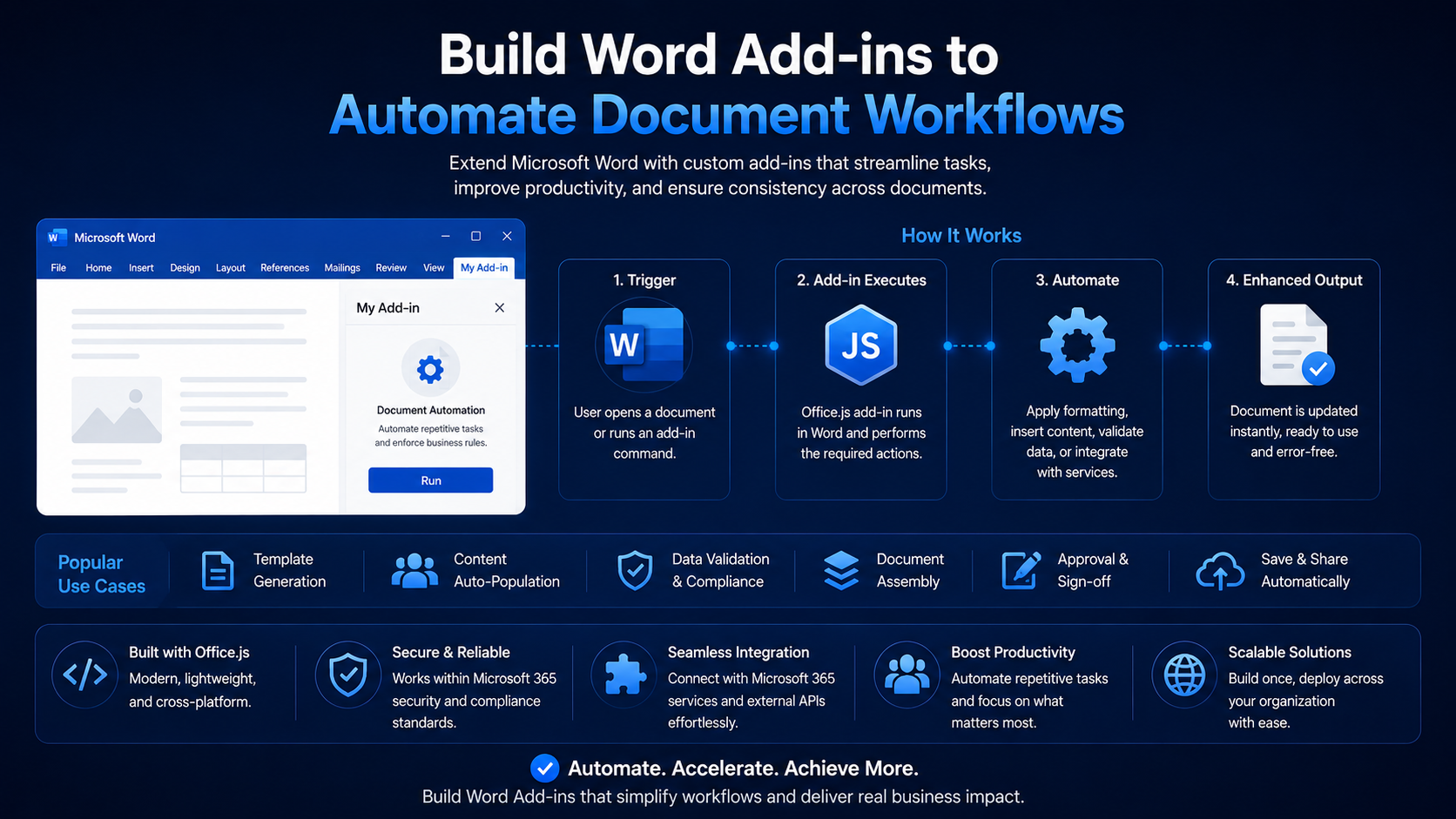
Build Word Add-ins to Automate Document Workflows
Use Office.js to generate contracts, enforce templates, and automate repetitive document tasks directly inside Microsoft Word.
Introduction
Word is where contracts, proposals, and reports are written — and where hours disappear into copy-pasting boilerplate and fixing inconsistent formatting. A Word add-in built on Office.js lets you automate that work without ever leaving the document.
Why Automate Word?
Legal, sales, and operations teams produce the same documents over and over with small variations. Automating insertion of clauses, branding, and client data eliminates errors and keeps every document on-template.
Scaffolding a Word Add-in
yo office
# choose: Task pane > JavaScript > Word
Working with the Document Body
The body object is your main entry point for inserting and reading content. This snippet inserts a heading and a paragraph at the end of the document.
await Word.run(async (context) => {
  const body = context.document.body;

  body.insertParagraph('Service Agreement', Word.InsertLocation.end)
    .styleBuiltIn = Word.BuiltInStyleName.heading1;

  body.insertParagraph(
    'This agreement is made between the parties as of the effective date.',
    Word.InsertLocation.end
  );

  await context.sync();
});
Content Controls & Templates
Content controls are named, structured regions you can target reliably from code — perfect for templates where specific fields must be filled in. Tag them once, then populate them programmatically.
await Word.run(async (context) => {
  const controls = context.document.contentControls
    .getByTag('clientName');
  controls.load('items');
  await context.sync();

  controls.items.forEach((c) => {
    c.insertText('Acme Corporation', Word.InsertLocation.replace);
  });
  await context.sync();
});
Tag, don’t search
Generating Documents from Data
Combine content controls with data from an API to produce finished documents in one click. Fetch the record, map fields to tags, and let the add-in assemble the document — ideal for quotes, invoices, and onboarding paperwork.
Best Practices
- Batch insertions and minimize context.sync() calls for speed.
- Use built-in styles so generated content matches the document theme.
- Prefer content controls and tags over fragile text search.
- Wrap Word.run in try/catch to handle protected or read-only documents gracefully.
Conclusion
A Word add-in turns the document from a blank page into a guided, data-driven workflow. Start by automating your single most repetitive document, and you will quickly find a dozen more tasks worth handing to the add-in.
Related Articles
 Word Add-insAI in Microsoft Word for Law Firms: Faster Drafting, Smarter Reviews, Better ReportsApril 15, 2026 · 10 min read
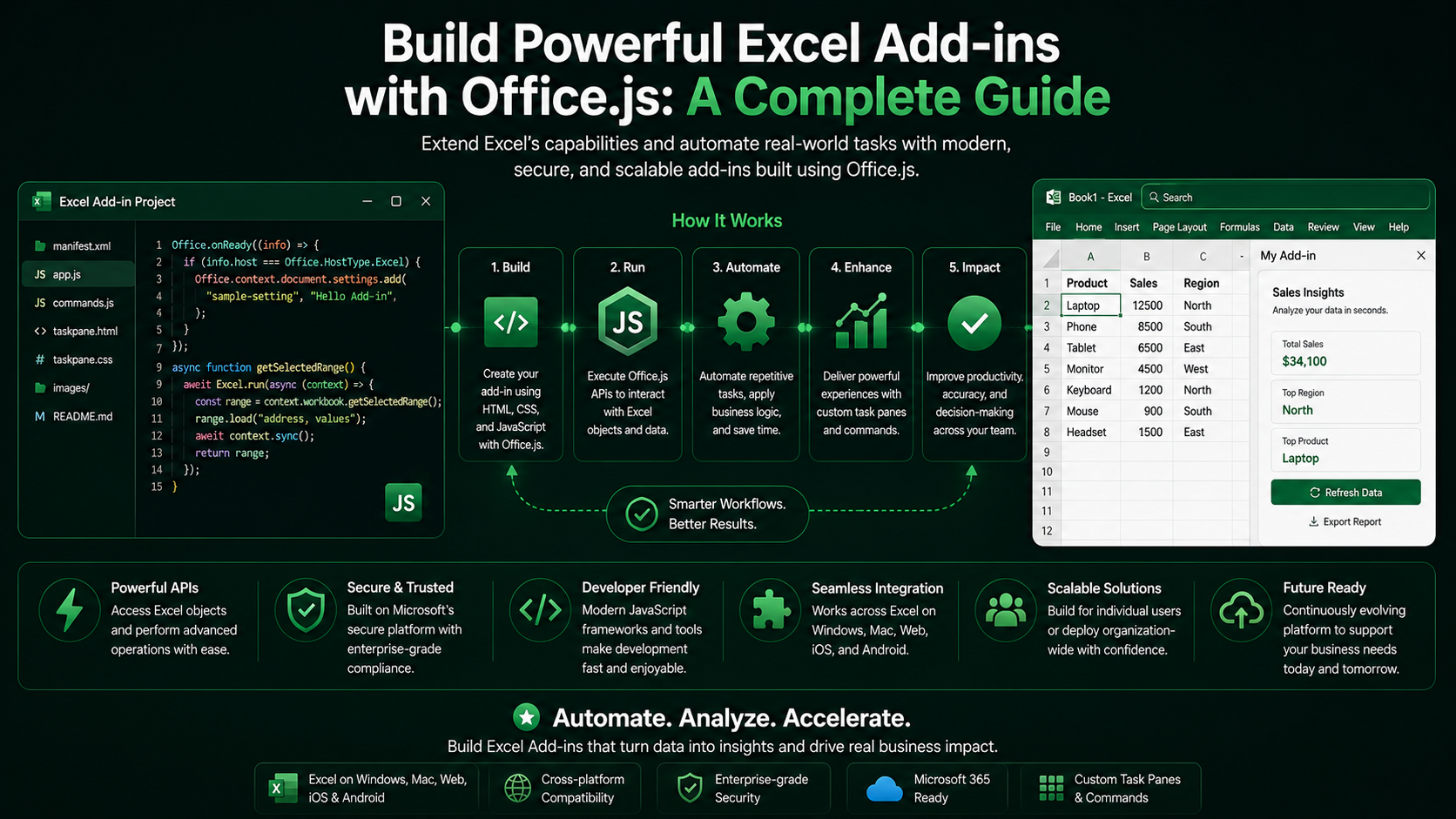 Excel Add-insBuild Powerful Excel Add-ins with Office.js: A Complete GuideMarch 12, 2024 · 8 min read
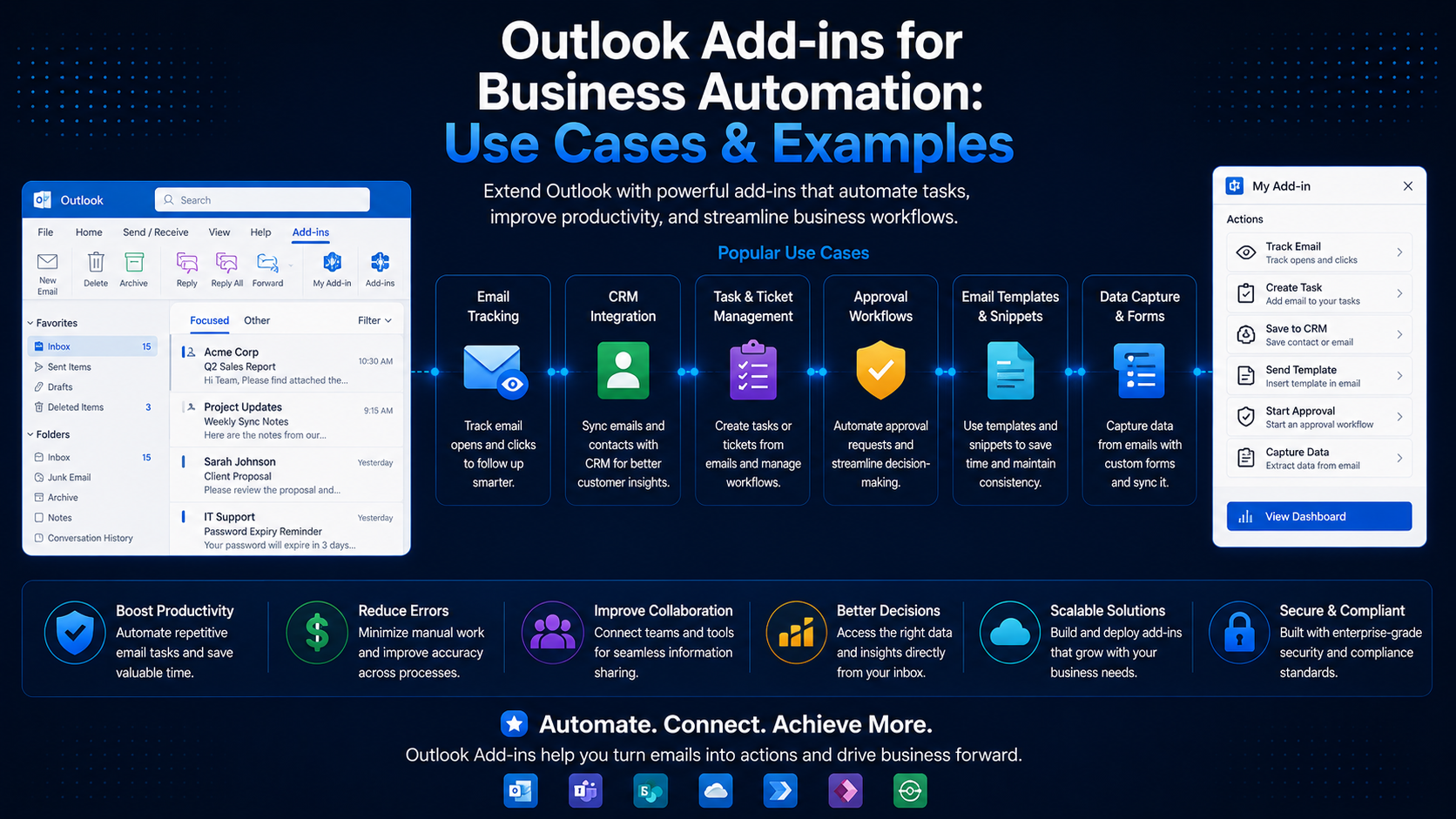 Outlook Add-insOutlook Add-ins for Business Automation: Use Cases & ExamplesJune 20, 2024 · 6 min read