Integrating Azure OpenAI into Office Add-ins Securely
How to add Azure OpenAI to your Office Add-in the right way — a secure backend architecture, SSO, protected credentials, and data practices that keep enterprise reviewers happy.
Introduction
Adding AI to an Office Add-in — summarising a document, drafting a reply, extracting data — is one of the most requested features right now. For enterprise clients, Azure OpenAI is usually the model of choice, because it runs inside their own Azure tenant with the compliance guarantees their security team expects.
But wiring an AI model into an add-in the wrong way is a fast route to a leaked API key or a failed security review. This guide covers how to integrate Azure OpenAI into an Office Add-in the secure way — the architecture, authentication, credential handling, and data practices that hold up under scrutiny.
Why Azure OpenAI?
Azure OpenAI gives you the same models as OpenAI, but delivered through Azure’s enterprise controls — which is exactly what wins over a cautious IT department.
- It runs in your Azure tenant and chosen region, supporting data-residency requirements.
- Microsoft does not use your prompts or completions to train the models.
- It plugs into Entra ID, Private Link, and Azure’s compliance certifications.
- You get content filtering, quotas, and monitoring out of the box.
The Golden Rule
Here is the single most important rule, and the one most often broken: your Office Add-in must never call Azure OpenAI directly. An add-in is a web page — anyone can open the browser dev tools, read your JavaScript, and lift the endpoint and key straight out of it. From there they can run up your bill or exfiltrate data.
The key never touches the client
The Secure Architecture
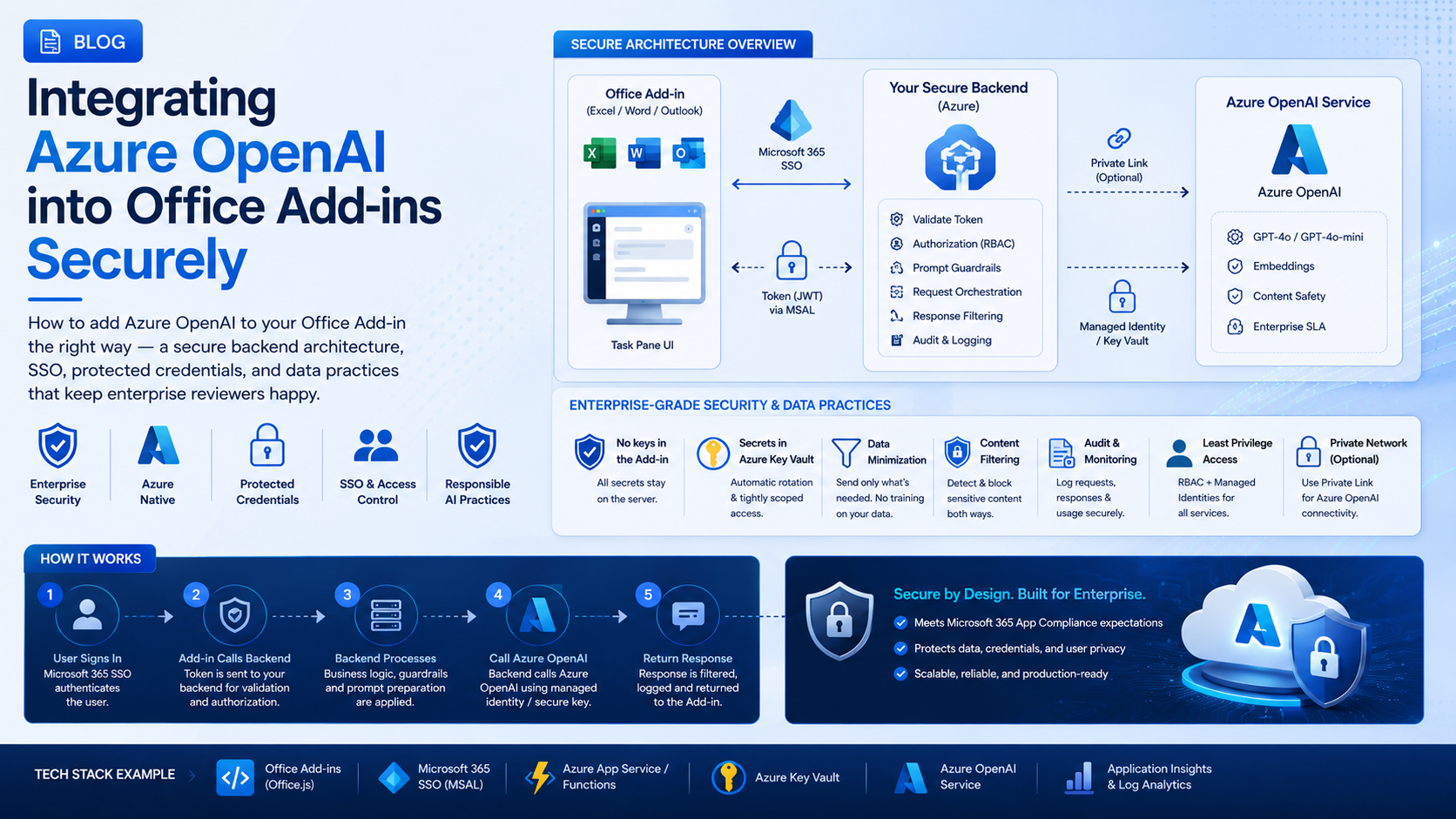
The pattern is a thin, authenticated proxy. The add-in sends the user’s request and an identity token to your backend; the backend verifies the token, adds the Azure OpenAI credentials it alone holds, calls the model, and streams the result back. The add-in never sees a secret.
- Task pane collects the prompt/context and the user’s SSO token.
- Your backend validates the token and applies per-user authorization and rate limits.
- Backend calls Azure OpenAI using a key from Key Vault, or (better) a Managed Identity.
- Backend returns the completion — streamed — to the add-in for display.
Authenticate with SSO
Your backend needs to know who is calling — otherwise it’s an open AI proxy. Office Single Sign-On issues a token for the signed-in Microsoft 365 user without a separate login prompt. Send it with every request, and validate it on the server before doing anything.
async function askAI(prompt) {
  const token = await Office.auth.getAccessToken({ allowSignInPrompt: true });

  const res = await fetch('https://your-backend.com/ai/complete', {
    method: 'POST',
    headers: {
      Authorization: `Bearer ${token}`,
      'Content-Type': 'application/json',
    },
    body: JSON.stringify({ prompt }),
  });
  return res.json();
}
Validate on the server
Protect Your Credentials
On the backend, keep the Azure OpenAI key out of source control — load it from Azure Key Vault or a secret store. Even better, skip the key entirely and authenticate with a Managed Identity via Entra ID, so there’s no long-lived secret to leak at all.
// Key lives in Key Vault / env — never in the add-in.
const endpoint = process.env.AZURE_OPENAI_ENDPOINT;
const apiKey = process.env.AZURE_OPENAI_KEY;

async function complete(prompt) {
  const res = await fetch(
    `${endpoint}/openai/deployments/gpt-4o/chat/completions?api-version=2024-06-01`,
    {
      method: 'POST',
      headers: { 'api-key': apiKey, 'Content-Type': 'application/json' },
      body: JSON.stringify({
        messages: [{ role: 'user', content: prompt }],
        max_tokens: 800,
      }),
    }
  );
  return res.json();
}
Prefer Managed Identity over keys
Send Only What You Need
Just because you can send the whole document to the model doesn’t mean you should. Send the smallest slice of content the task actually needs, and give users control over the most sensitive material.
- Send only the selected text or relevant section, not the entire file, when that’s enough.
- Offer a redaction step for regulated data, and make it easy to review before sending.
- Log requests for audit, but avoid storing prompt content unless you truly need to.
- Lean on Azure OpenAI’s content filtering, and handle blocked responses gracefully.
Responses & Streaming
AI responses can take several seconds, and a frozen task pane feels broken. Stream the completion so text appears token by token — the same effect you see in ChatGPT. Your backend proxies Azure OpenAI’s streaming response straight through to the add-in.
Stream, and always handle failure
stream: true on the Azure OpenAI call and forward the chunks to the client. Wrap everything in retry and timeout handling too — rate limits and transient errors are normal, so show a graceful message rather than a spinner that never ends.Security Checklist
- All Azure OpenAI calls go through your backend — never the add-in.
- Credentials live in Key Vault or, better, a Managed Identity — never in client code.
- Every request carries a validated SSO token; the backend enforces authorization.
- Per-user rate limiting and quotas protect against abuse and runaway cost.
- Only the minimum necessary content is sent, with redaction for sensitive data.
- HTTPS everywhere, content filtering on, and audit logging in place.
Conclusion
Done well, Azure OpenAI turns your Office Add-in into a genuinely intelligent assistant without ever compromising security: a backend that owns the credentials, SSO that proves who’s calling, least-privilege data handling, and Azure’s own compliance posture behind it. Get the architecture right first, and the AI features become the easy part. If you’d like a secure, production-ready AI add-in built and reviewed for your organisation, we’d be glad to help.