Centralized Deployment of Office Add-ins: A Complete Guide
Roll out Office add-ins to your whole organization from the Microsoft 365 admin center — no manual installs, full control, instant updates.
Introduction
Building a great add-in is only half the job — getting it onto every user’s Office reliably is the other half. Centralized Deployment lets a Microsoft 365 admin push an add-in to users and groups so it simply appears, ready to use.
Ways to Distribute an Add-in
- AppSource — public listing for anyone to install.
- Centralized Deployment — admin pushes to your organization.
- SharePoint catalog — older method, still used in some tenants.
- Sideloading — for development and testing only.
Why Centralized Deployment?
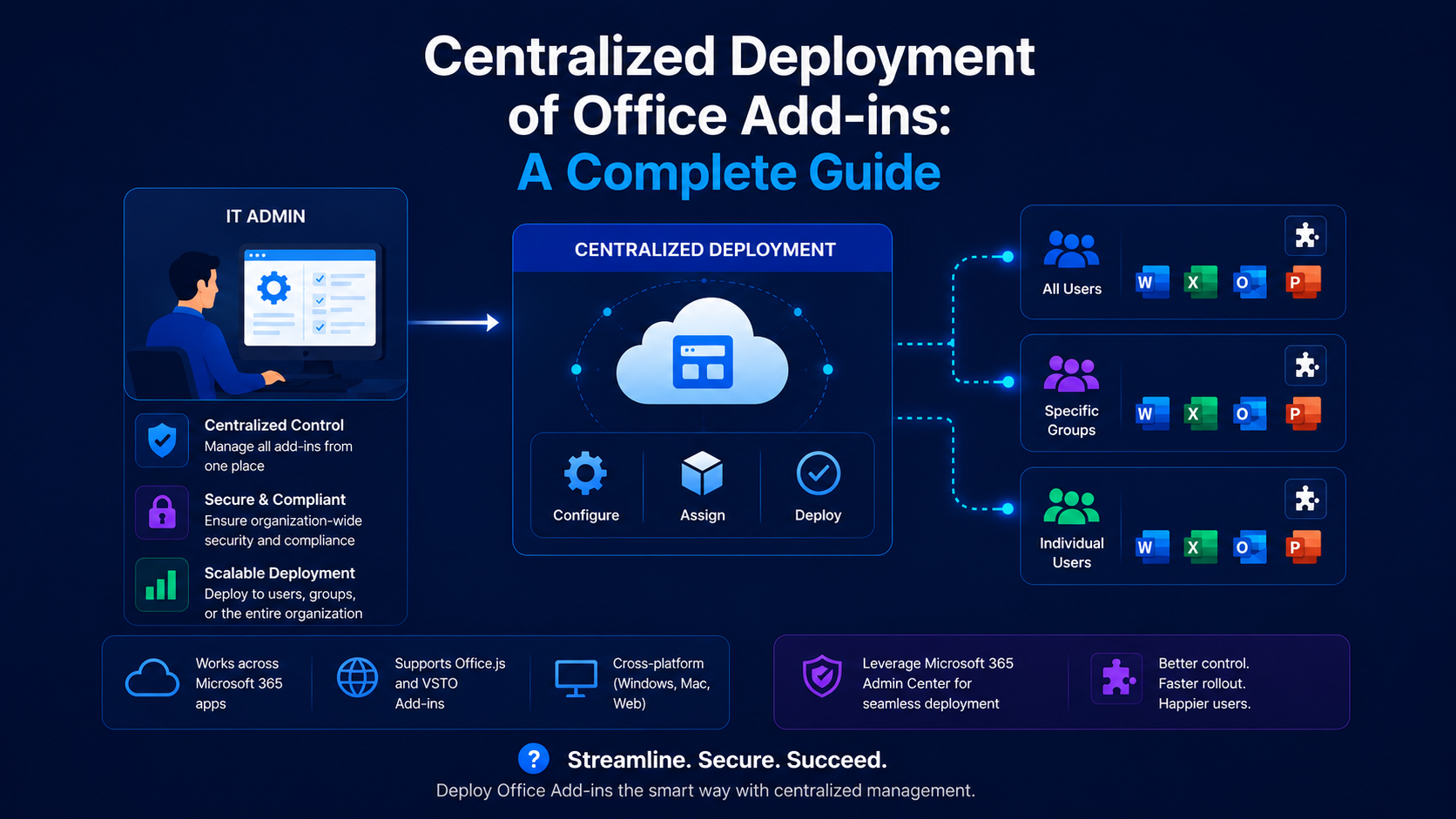
Centralized Deployment is the recommended path for internal line-of-business add-ins. Admins control exactly who gets the add-in, users never touch an installer, and the add-in works across Windows, Mac, and the web.
Prerequisites
- Global admin or Office Apps admin rights in the tenant.
- A valid add-in manifest, or an AppSource listing URL.
- The add-in’s web content hosted on trusted HTTPS.
- Users on Microsoft 365 (Exchange Online for mail add-ins).
Deploying Step by Step
- In the Microsoft 365 admin center, go to Settings → Integrated apps.
- Choose Upload custom apps, then provide the manifest file or AppSource link.
- Review the requested permissions and host applications.
- Select the users or groups who should receive the add-in.
- Accept and finish to publish the deployment.
Assigning to Users & Groups
You can target everyone, specific security groups, or named individuals. Group-based assignment is best for production — add or remove people from the group and their access follows automatically.
Pilot with a group first
Updates & Troubleshooting
Because the add-in is a hosted web app, code and content updates ship the instant you redeploy your bundle — no admin action needed. Only manifest changes (new permissions, URLs, or commands) require re-uploading in the admin center.
Propagation takes time
Conclusion
Centralized Deployment turns add-in distribution from a support headache into a single admin workflow. Pair it with group-based assignment and a small pilot group, and you can ship updates to thousands of users with confidence and zero desktop installs.