VSTO Add-ins in 2026: When Desktop Office Extensions Still Win
A practical guide to VSTO add-ins — what they are, where they beat modern web add-ins, and how to build and deploy them well, from someone who ships them for a living.
Introduction
Every few months someone tells me VSTO is dead. Then a bank, a law firm, or a logistics company sends over an Excel workbook that runs their entire month-end close — and asks if we can add three features to the tool their team already trusts. VSTO is not dead. It is quietly running mission-critical work inside Office on millions of desktops, and knowing when to reach for it is still a genuinely useful skill.
I have spent years building both VSTO and modern web add-ins, so this isn’t a sales pitch for one side. It’s a straight answer to the question I get asked most: when does VSTO still make sense, and how do you build one you won’t regret maintaining?
What VSTO Actually Is
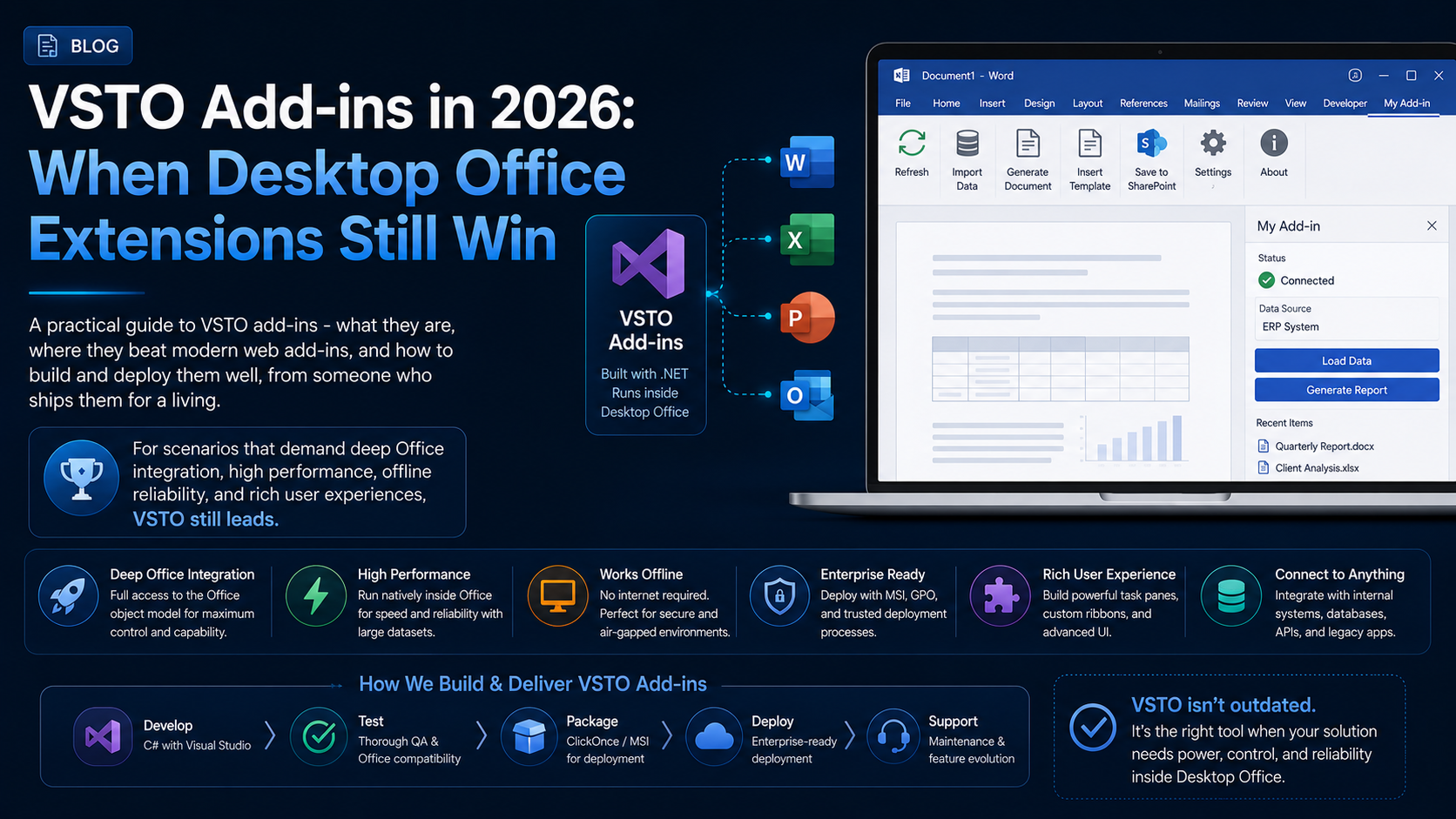
VSTO — Visual Studio Tools for Office — lets you extend the desktop versions of Word, Excel, Outlook, and PowerPoint using C# and the .NET Framework. Your code runs *inside* the Office process, so it can reach the full object model, talk to the local machine, and integrate with COM, databases, and on-premise systems the way a native application would.
The Honest Case for VSTO in 2026
Microsoft clearly favours web add-ins going forward, and for most new, cloud-first projects that’s the right call. But VSTO still wins decisively in a few scenarios, and pretending otherwise does clients a disservice.
- You need deep access to the Office object model that Office.js doesn’t expose yet.
- The solution must work fully offline, with no dependency on a web server.
- It has to touch local resources — the file system, a local database, printers, or COM components.
- You’re extending an existing VSTO estate and rewriting it as a web add-in isn’t justified.
- The users are firmly on Windows desktop Office and always will be.
A simple rule of thumb
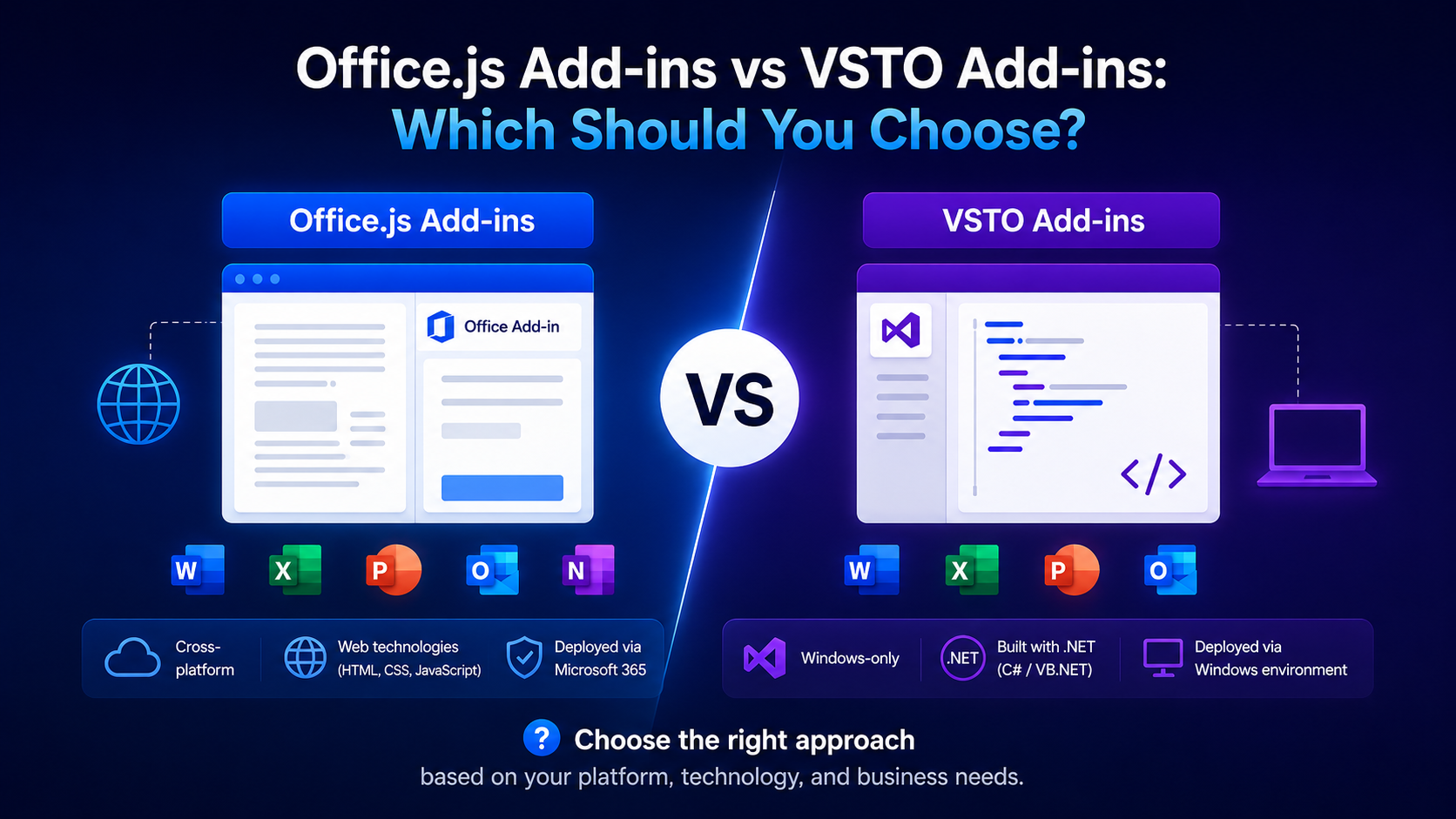
VSTO vs Web Add-ins: Choosing Well
Web add-ins give you cross-platform reach (Windows, Mac, web, mobile), centralized deployment, and instant updates — at the cost of a sandbox and an internet dependency. VSTO gives you power and offline reliability — at the cost of being Windows-desktop-only and harder to deploy. Neither is “better”; they solve different problems. The mistake I see most is picking one for ideological reasons rather than matching it to how the users actually work.
Anatomy of a VSTO Add-in
A VSTO project has three moving parts: the add-in assembly (your C# code), a Ribbon or task pane for the UI, and event handlers wired to the Office application. The entry point is ThisAddIn, where you hook into startup and shutdown.
public partial class ThisAddIn
{
    private void ThisAddIn_Startup(object sender, EventArgs e)
    {
        // Runs when Office loads the add-in.
        this.Application.WorkbookOpen += OnWorkbookOpen;
    }

    private void OnWorkbookOpen(Excel.Workbook wb)
    {
        // React to the user opening a workbook.
    }

    private void ThisAddIn_Shutdown(object sender, EventArgs e)
    {
        // Clean up handlers and resources here.
    }
}
A Ribbon Button That Does Real Work
Most VSTO solutions start with a Ribbon button that automates something tedious. Here’s a button handler that writes a small report into the active Excel sheet — the kind of thing that replaces ten minutes of manual copy-paste.
private void GenerateReportButton_Click(object sender, RibbonControlEventArgs e)
{
    var app = Globals.ThisAddIn.Application;
    Excel.Worksheet sheet = app.ActiveSheet;

    sheet.Range["A1"].Value2 = "Region";
    sheet.Range["B1"].Value2 = "Revenue";
    sheet.Range["A2"].Value2 = "EMEA";
    sheet.Range["B2"].Value2 = 42000;

    sheet.Columns.AutoFit();
}
Release your COM references
Deployment Without the Headaches
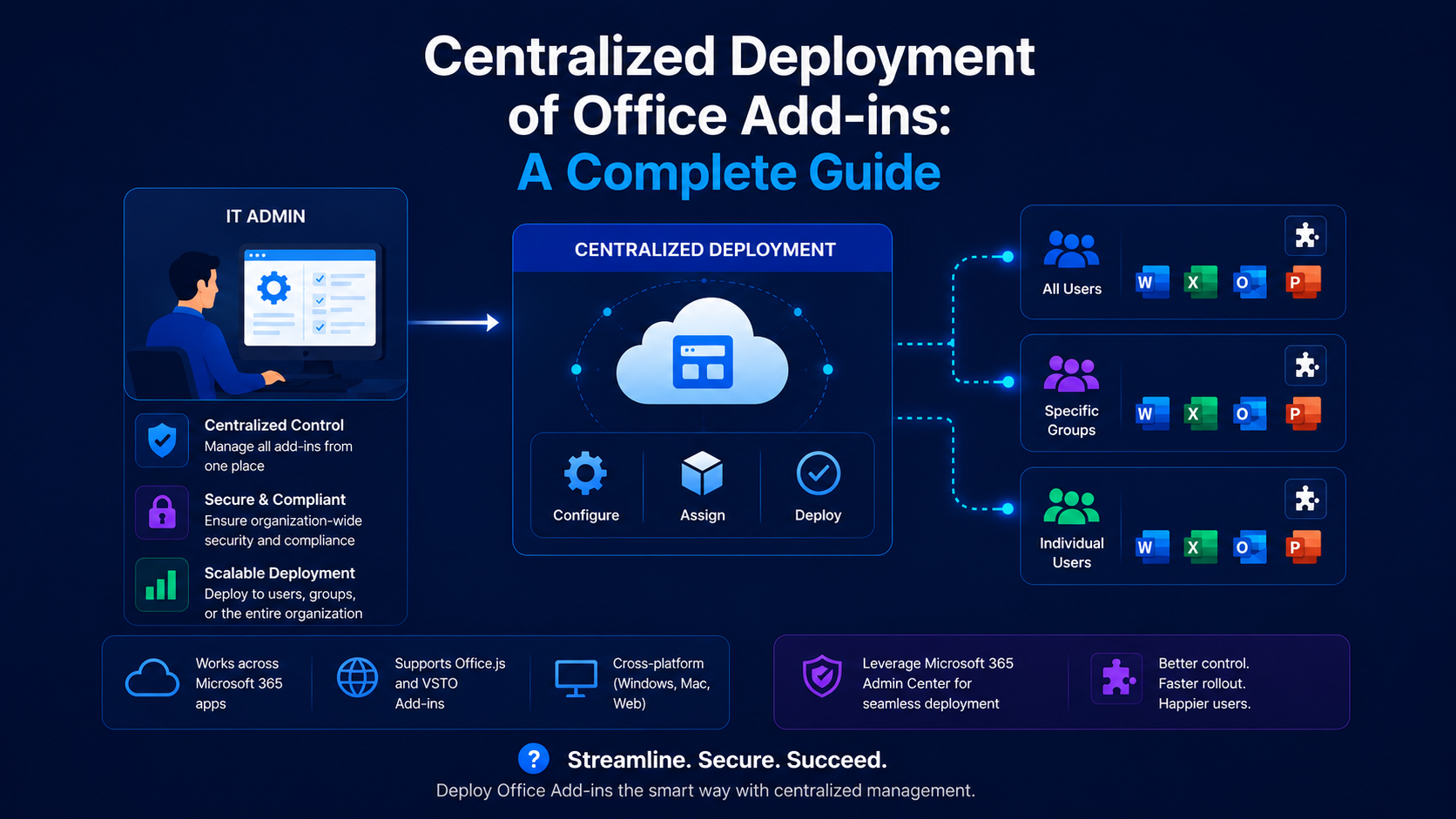
Deployment is where VSTO earns its difficult reputation — and where good engineering pays off. You have three realistic options, and picking the right one for the audience matters more than the code.
- ClickOnce — great for auto-updating installs when users have the right permissions.
- Windows Installer (MSI) — the enterprise favourite, deployable via Group Policy or Intune.
- Per-machine vs per-user — decide early; it affects registry keys, permissions, and updates.
Sign everything
Pitfalls I Warn Every Team About
- Blocking the UI thread — long operations freeze Office; move heavy work off the main thread and give feedback.
- Version drift — test against every Office and .NET version your users actually run, not just yours.
- Swallowing exceptions — an unhandled error can silently disable the add-in; log and fail gracefully.
- Skipping COM cleanup — the number-one cause of “Excel won’t close” bug reports.
- No update path — plan how fixes reach users before you ship version 1.
Conclusion
VSTO isn’t the future of Office extensibility — web add-ins are. But “not the future” and “not the right tool today” are very different statements. For offline, deeply integrated, Windows-desktop solutions, VSTO remains the pragmatic, powerful choice, and a well-built one can serve a business reliably for a decade. Build it with disciplined COM handling, a real deployment plan, and signed assemblies, and you’ll have a tool people quietly depend on. If you’re weighing VSTO against a web add-in for your own workflow, my team and I are always happy to help you choose — and then build — the right one.